Preview and Download a Deck
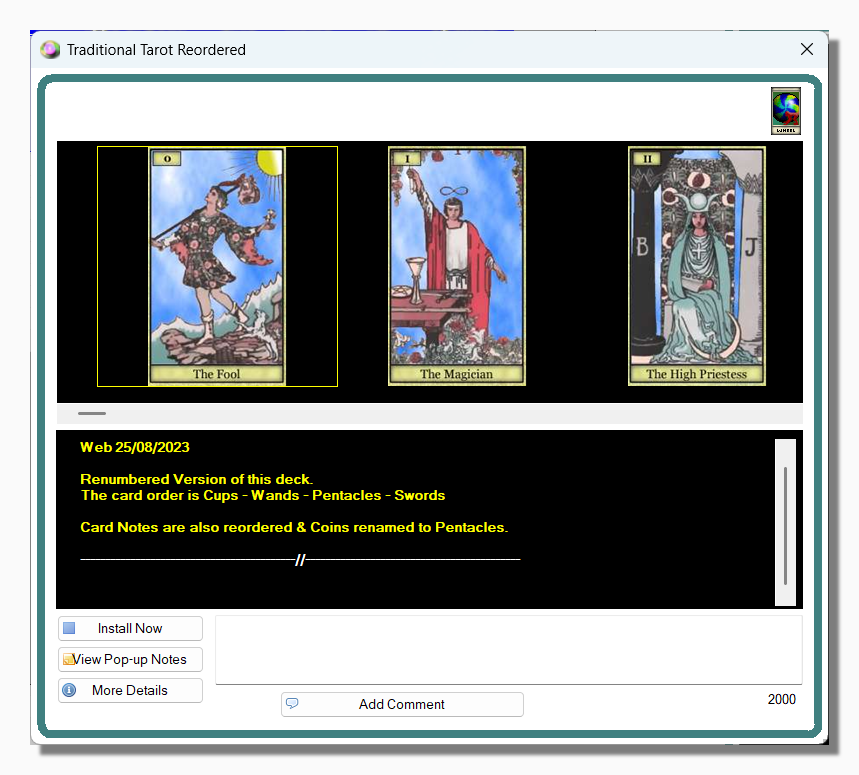
This window lets you view the details of any deck that interests you in the Deck Exchange.
The panel at the top of the screen shows all the cards in the deck, plus the background form and the card back image if the deck happens to contain them. You can scroll through the images by moving the slider at the bottom of the image panel or selecting one of the cards and using the left and right arrows on your keyboard.
Another purpose of this window is to allow you to add comments about the deck for the benefit and interest of other users. Simply write your comment in the text area at the bottom of the screen and press the Add Comment button. The maximum length of any comment is 2,000 characters and the number at the bottom right of the screen represents the number of characters left.
Tip: You have to be a registered user to add comments.
Installing a Deck
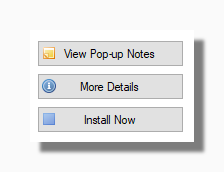
If you decide to Install the deck just press the Install Now button and decide which folder you want to save it to.
Tip: You have to be a registered user to install decks.
The More Details button shows a dialog with extra information about the deck, basically the same information that you can see in the main grid of the Deck Exchange.
The View Pop-up Notes button lets you preview the Little White Book style Pop-up Notes, should the deck contain any.